Hardware & Device FAQ
My computer fails to boot or drops to a shell
If your computer fails to boot properly and drops you into a command-line shell (often called a “rootfs shell”), it may be because the bootloader is broken or misconfigured.
To fix this, you must first boot from your TechLit USB drive. Once you have booted into the USB environment, you have two options:
-
Reinstall the bootloader: This is the quickest method. Open a terminal and run the following command:
sudo tl-hw-update-bootloader /dev/sdXDevice Drive
Replace
/dev/sdXwith the correct device name for your computer’s internal drive (e.g.,/dev/sda). Uselsblkto identify it. -
Run a full desktop update:
tl-hw-update-desktop See the
updating guide
How do I identify my USB drive?
lsblk- Check by Storage Size
The USB drive’s total size is a good indicator. It will almost always be significantly smaller than your computer’s internal storage (hard drive or SSD).
- Check by Mount Points
- On the TechLit Desktop OS: The main system partition is typically mounted at
/. Your USB drive will likely not be mounted, or mounted elsewhere. - In TechLit ISO (Recovery Mode): The system boots from the USB, so its partitions will be mounted on key system directories:
- The 4th partition (e.g.,
/dev/sdb4) is mounted at/srv. - The 3rd partition (e.g.,
/dev/sdb3) is mounted at/.
- The 4th partition (e.g.,
How do I mount my USB drive?
# Identify the USB drive (say usb is /dev/sda)
lsblk

# Mount the 4th partition of the USB drive
sudo mount /dev/sda4 /mnt
Wi-Fi Issues
How do stop the firewall temporarily?
Security Risk
Only disable if necessary. Re-enable immediately after.
rsv stop nftables # Stop the firewall
rsv start nftables # reactivate the firewall
I am unable to turn on my Wi-Fi
- Run
rfkill listto see all your network devices. - If your card is listed as soft blocked, run
sudo rfkill unblock wifito turn it on. - If it is hard blocked, look for a hardware switch on your computer and turn it on.
- If none of these work, try a different wifi hack in reconfigure
Device-Specific Guides
Dell
Click to see device-specific guides…
This section provides solutions for common issues encountered with Dell
Invalid Partition Table Error on Boot
- Switch to UEFI Boot Mode
- Restart the computer and press
F2orF12to enter BIOS setup. - Navigate to General > Boot Sequence.
- Change the boot mode from Legacy to UEFI.
- Save changes and exit BIOS.
- Simply Press Enter to ignore the warning and proceed booting.
USB Boot Failure
If you encounter the error “Selected boot device failed. Press any key to reboot the system,” follow these steps:
- Try a different USB port. A simple port change can often resolve the issue.
- Manually add the boot option in BIOS:
- Restart the computer and press
F2orF12to enter BIOS setup. - Navigate to General > Boot Sequence.
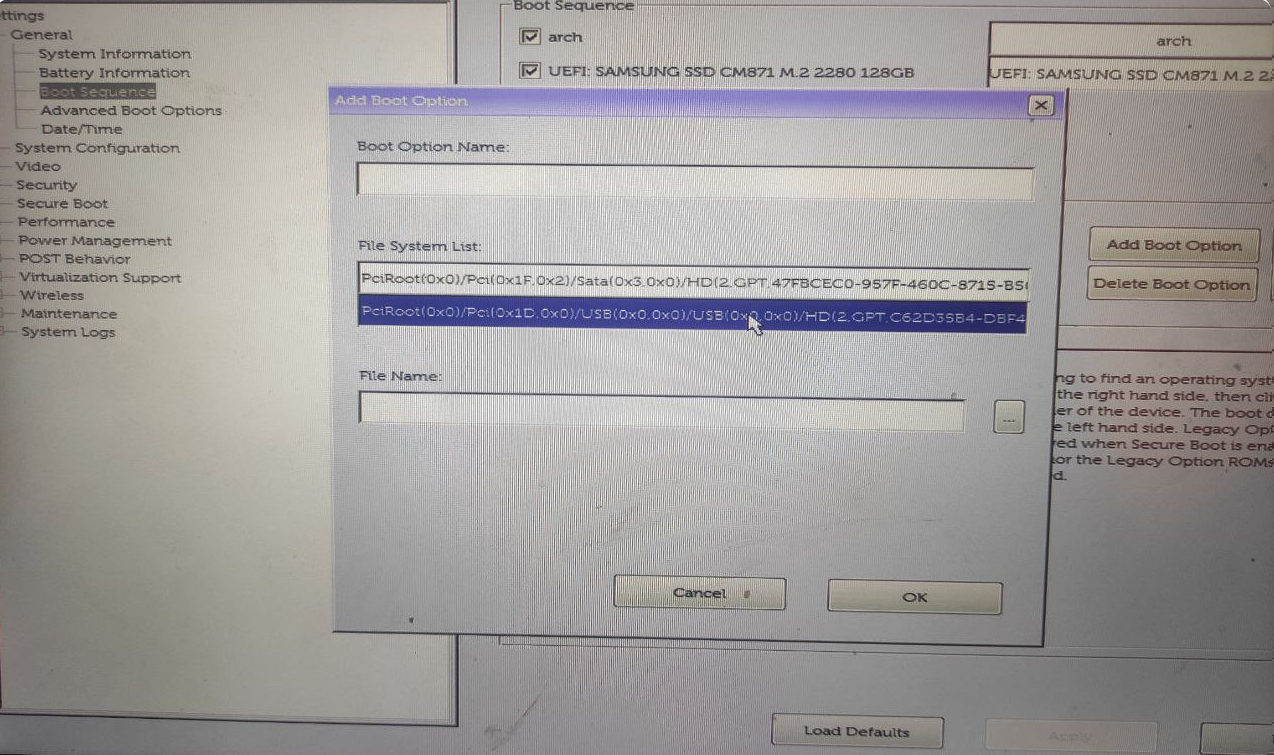
Boot list - Click Add Boot Option.
- Select your USB device and navigate to the
\EFI\BOOT\BOOTX64.EFIfile.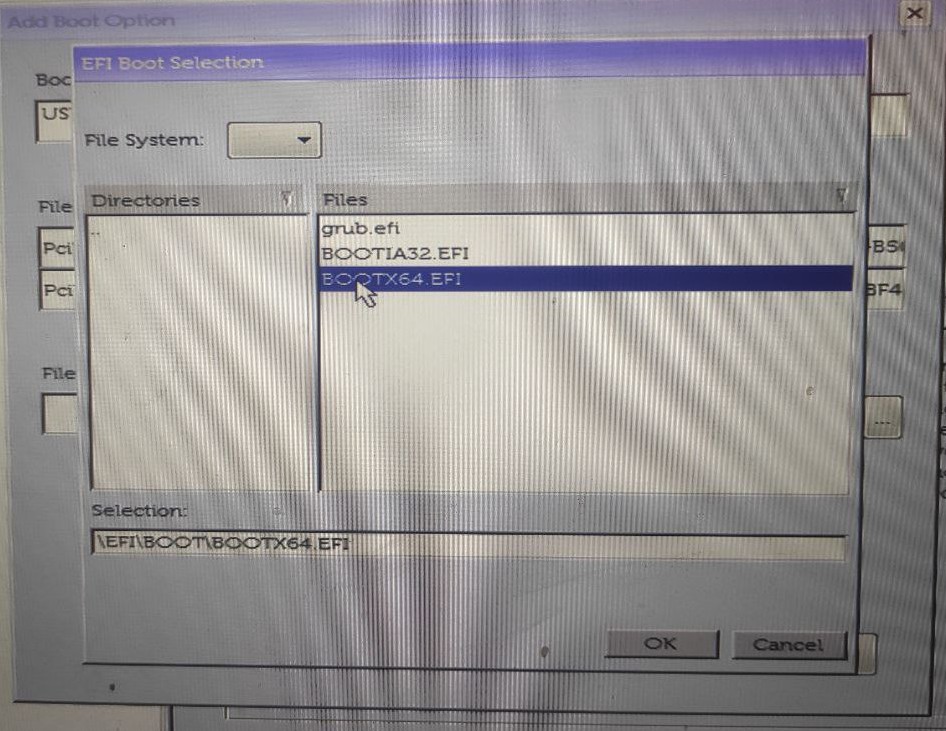
Boot list - Save your changes and exit BIOS. You should now be able to select the USB drive from the boot menu.
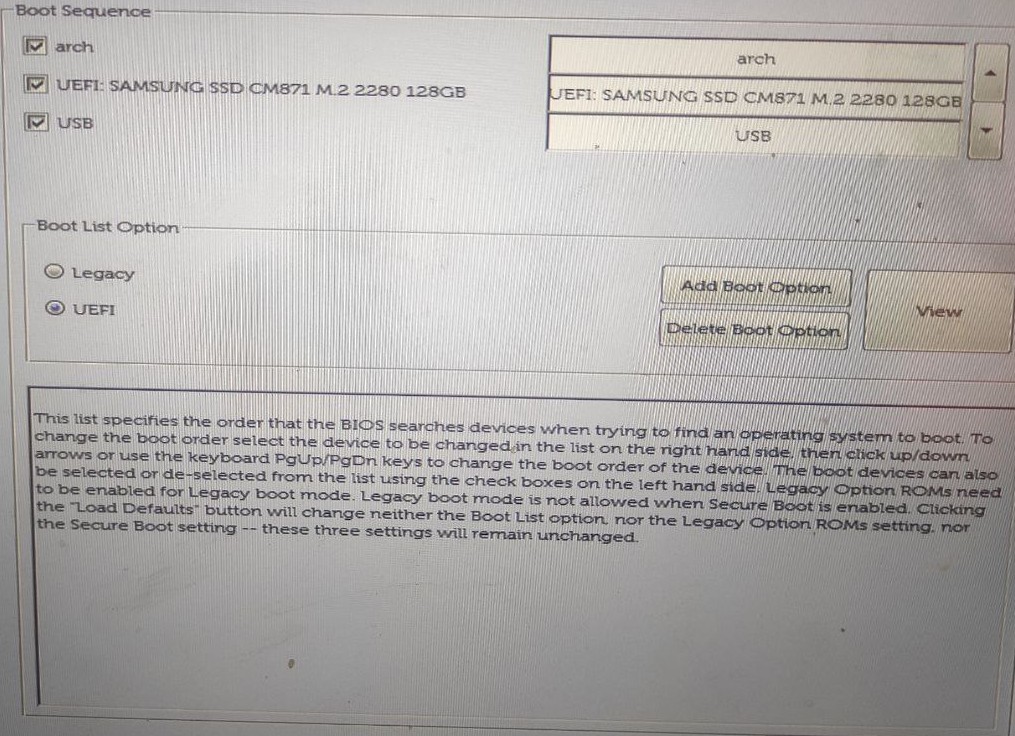
Boot list
- Restart the computer and press
USB 3.x Drive Not Detected
If your system fails to detect a USB 3.x drive, you may need to adjust the boot mode settings in the BIOS.
- Enter BIOS setup by pressing
F2orF12during startup. - Locate the boot settings and change the boot mode from BIOS/Legacy to UEFI.
HP
Click to see device-specific guides…
This section provides solutions for common issues encountered with HP devices.
USB 3.x Drive Not Detected in Boot Menu
Some older HP models may not automatically detect a bootable USB 3.x drive. Here are two methods to resolve this:
1. Switch Boot Modes
Changing the boot mode in the BIOS can often force the system to recognize the USB drive.
- Enter the BIOS setup (usually by pressing
F10orESCduring startup). - Locate the boot options or system configuration.
- Change the boot mode from UEFI to Legacy, or from Legacy to UEFI.
- Save the changes and restart. See if the USB drive appears in the boot menu.
2. Boot From EFI File
If switching boot modes doesn’t work, you can manually select the boot file. This is the most reliable method.
- Enter the BIOS setup.
- Find the boot menu and look for an option like “Boot From EFI File” or “Select UEFI File as Trusted for Executing”.
- Navigate to your USB device and select the
\EFI\BOOT\BOOTX64.EFIfile. - Save the configuration and restart. The USB drive should now be a bootable option.