Update Standard Desktop via USB
Update the Desktop on a standard desktop (>32GB) with a USB drive. This is the recommended method for offline computers.
Prepare Your USB Drive (if needed)
Before updating, ensure your USB drive contains the desired update files. If not, prepare it on a computer that has access to the downloaded update files by running the following commands to sync the admin and desktop components to your USB drive.
# List connected drives to identify your USB
lsblk

# Run the sync command (replace /dev/sdX with your USB device)
tl-usb-update-components /dev/sdX
Update The Computer
Once your USB is prepared (or if it was already updated), you can use it to update another computer’s desktop.
Launch the USB Updater
- Insert the prepared USB drive into the destination computer.
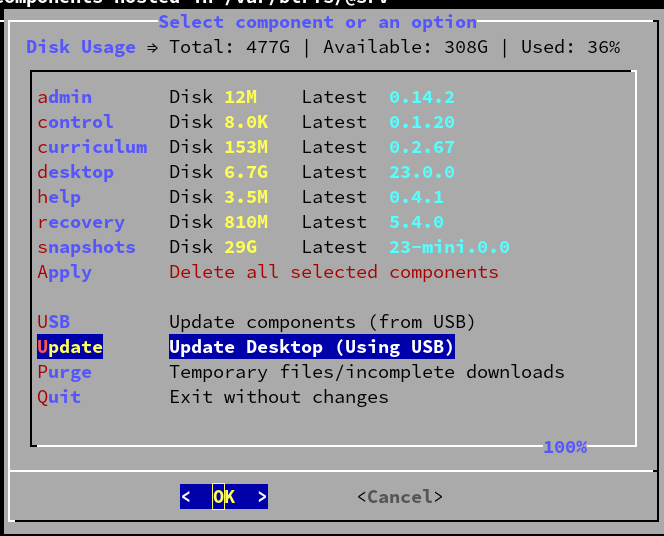
- Open the application menu and search for “Manage Components”.
- In the application, select Update → Update Desktop (Using USB).
- Choose your USB drive from the list that appears.
Complete the Update
The system updates automatically.
Tip
Once the update process begins and you see messages about “unpacking”, you can safely unplug the USB drive and use it on another computer.
Once it is finished, press Y to reboot the computer, or reboot it manually.